Where is my list saved?
In IndexedDB in this browser. It restores on reload but does not sync across devices. Back up as CSV before clearing site data.
Create 40×30 mm barcode label PDFs from a saved product list.
40 × 30 mm
Custom 40×30mm product labels. Not an official Coupang issuing or approval tool. Check registered barcodes and current receiving requirements. Does not replace shipment box labels.
Draft and list are saved on this device in this browser. No account sync. Clearing site data or private browsing can remove them. Files and product data are not sent to our server.
Add products, then create a preview.
Print on 40×30mm paper at 100% / actual size, no margins, headers or footers. Print and scan one label first.
Content updated:
Select CODE128 and enter these rows in barcode, product name, quantity order. TEST-001 and TEST-002 are sample codes, not codes for real receiving. Copy three spreadsheet columns as tab-separated text.
| Barcode | Product name | Quantity |
|---|---|---|
| TEST-001 | Sample pouch | 2 |
| TEST-002 | Sample cable | 1 |
Add the rows and generate previews: two product previews appear, while the PDF contains three pages because quantities are applied. Set paper to 40×30mm, use actual size (100%), disable headers and footers, and print one sample first. If edges are clipped, check the PDF and printer paper dimensions. Arbitrary text codes cannot be used as EAN13. The list stays in this browser; clear it after using a shared device.
Need a code for a web address? Use the QR generatorThe TSV contains two copies of TEST-001 and one of TEST-002. Import it and choose CODE128, 203dpi. If your list already contains products, export a CSV backup and clear the list first to reproduce the three-page result.
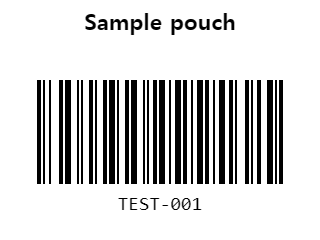
The PDF has three 40×30mm pages. Do not use sample barcodes for real receiving. The image shows the first product preview. Set printer paper to 40×30mm and scale to 100%, then test one label. These files do not replace physical print and scan checks.
Enter barcodes, product names and quantities to create a PDF with one 40×30mm label per page. Set the printer paper to 40×30mm and print at Actual size or 100%. This is not an official Coupang tool; verify inbound codes and requirements with your seller instructions.
| Option | Useful for | What to check |
|---|---|---|
| CODE128 | Numeric, letter and hyphen codes | Only codes that fit legibly within 40mm |
| EAN13 | 13-digit numeric barcodes | Requires a valid length and check digit |
| 203 / 300 DPI | Match your printer resolution | Both retain a 40×30mm PDF page |
barcode,product,quantity
123456789012,Sample A,2
123456789013,Sample B,1These are practice codes. Use the assigned codes for real shipments. Physical printer output needs a separate check.
References: Adobe: Actual-size PDF printing · Content reviewed:
Each PDF page is 40×30mm and repeats according to quantity. CODE128 accepts letters, digits and hyphens. EAN13 requires 13 digits with a valid checksum. This tool renders existing identifiers; it does not issue new product IDs.
In IndexedDB in this browser. It restores on reload but does not sync across devices. Back up as CSV before clearing site data.
Format the barcode column as text before pasting. Zeros already lost or numbers changed to scientific notation must be recovered from the source.
No. Verify registered identifiers, product names and receiving requirements. This custom product label does not replace official shipment box labels.
40×30mm paper, 100% / actual size, no margins, headers or footers. Test one label with your scanner.
Names must fit two lines. Oversized names and barcodes stop generation instead of being truncated.
Download Back up list as CSV, then import that file on the other device. Browser storage does not sync between devices or browsers. CSV contains only barcodes, product names and quantities; it does not include the unsubmitted draft, barcode format or DPI. Select the format and DPI again and check the preview after importing.
No. Imported rows are appended, and matching barcodes are not merged. Importing the same two rows into an existing two-row list produces four rows. To replace a list, back it up first, clear it, then import once. If the combined list exceeds 100 products or 500 labels, or a row is invalid, the entire imported batch is rejected.
No. It cannot infer digits that have already been lost. Compare the code with the original product record. Set the spreadsheet barcode column to text before entering the original values and copying them. After import, check that a code such as 001234 has not become 1234. Numeric scientific-notation codes are rejected by input validation.
Check paper height, label gap and sensor calibration in your printer settings. Test one label at actual size before a batch.
Paste tab-separated spreadsheet columns or wrap the product name in double quotes in CSV. Example: 123456789012,"Sample, A",2.